Connect Crisp
Already using Crisp for website chat? Connect it to OneChat and let your AI agent handle first-line answers inside your existing Crisp inbox — your team keeps the Crisp workflow they know.
The connection is a swap of four values between two consoles: you copy Crisp's website ID, API identifier and API key into OneChat, then paste OneChat's webhook URL back into Crisp.
Prerequisites
- A Crisp workspace with the website chat installed.
- Owner rights on the workspace — Crisp only lets owners create an API token.
- An agent in OneChat. The webhook URL is issued per agent, so create the agent first.
Step 1 — Open the channel in OneChat
In the OneChat dashboard, open your agent, go to the Integrations tab, and pick Crisp from the channel list.
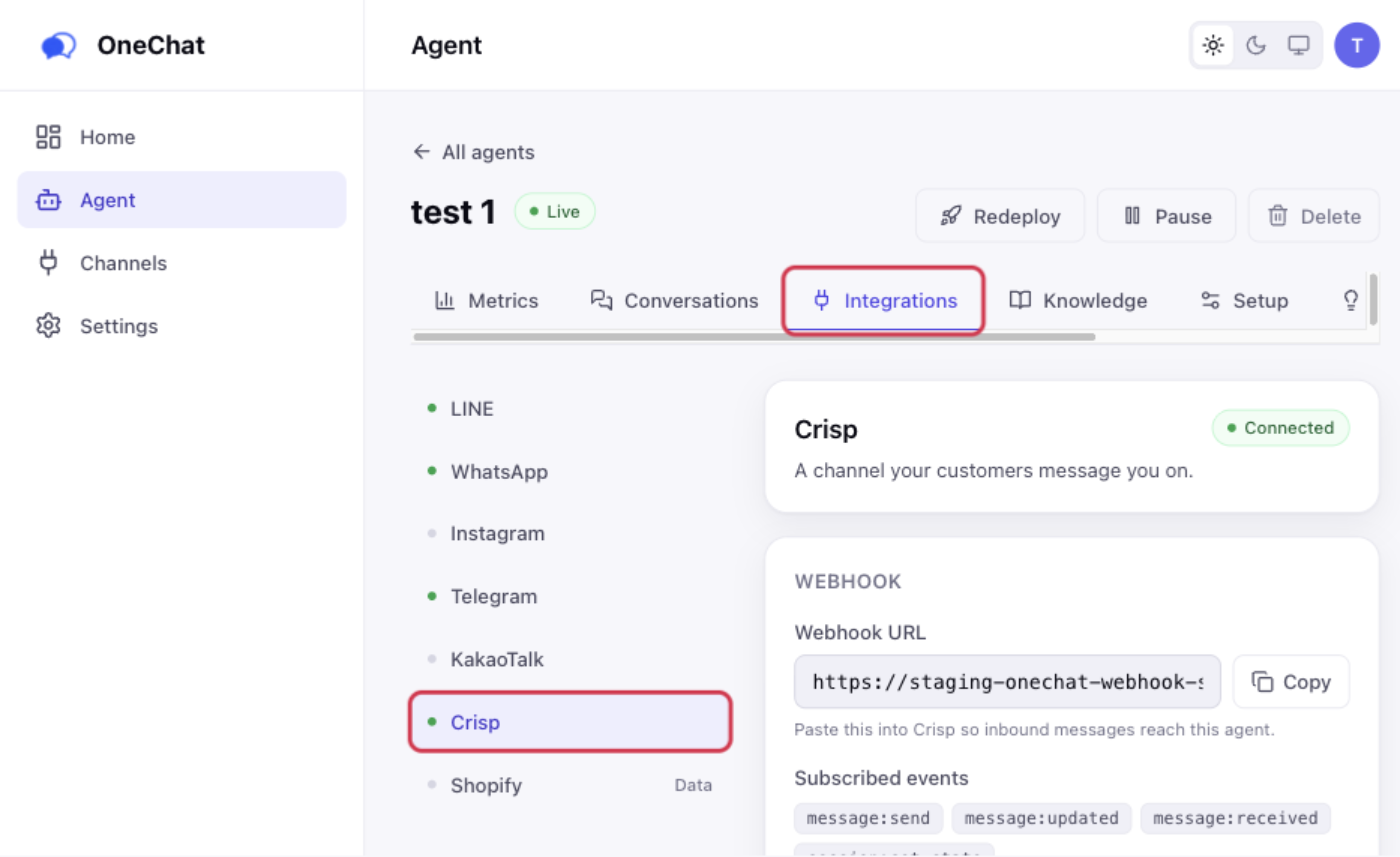
The panel has three sections: Webhook, Credentials and How to connect. Leave it open — the next two steps fill in Credentials, and Step 4 comes back for the Webhook URL.
Step 2 — Copy your Crisp website ID to OneChat
Open Settings in Crisp, and in the left-hand menu under Workspace Settings choose Setup & Integrations. Website ID is the very first field on that page, under General Options — click Copy beside it.
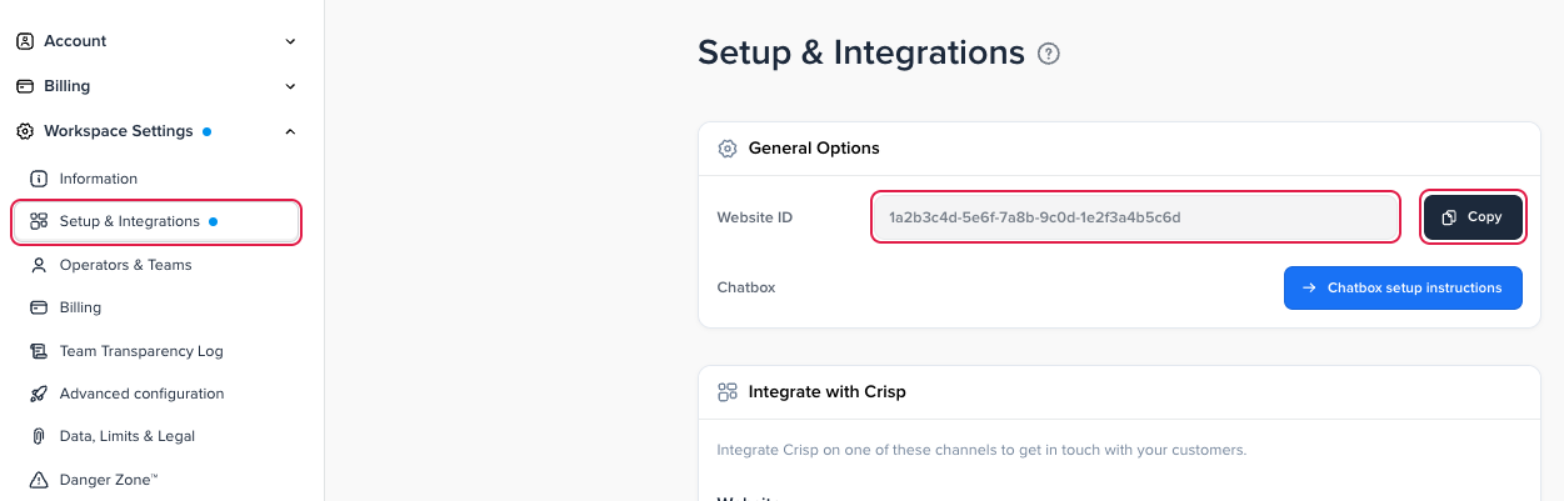
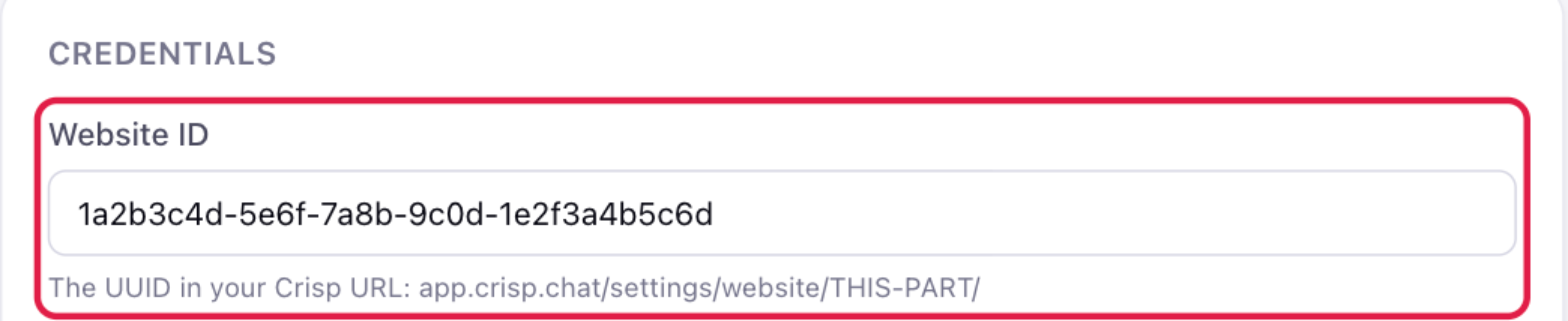
The value is a UUID. OneChat's own hint points at the Crisp URL instead — app.crisp.chat/settings/website/THIS-PART/ — which is the same value, if you would rather read it out of the address bar.
Back in OneChat, paste it into Website ID under Credentials. This is what tells OneChat which Crisp workspace a conversation belongs to.
Step 3 — Create a Crisp API token and connect
In Crisp, go to Settings → Workspace Settings → Advanced configuration and find the REST API + MCP Server Tokens card. If the workspace has no token yet, create one here; Crisp then shows an identifier and a key together, and the key is shown only once.
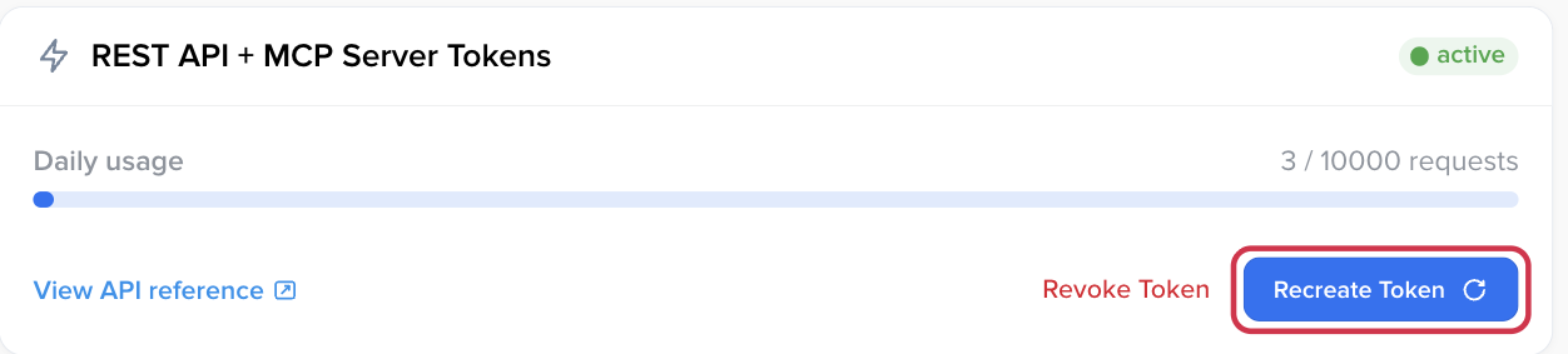
If the card already reads active with Revoke Token / Recreate Token, a token exists and Crisp will not show it again. Recreate Token issues a new one and breaks whatever is using the old one — only press it if you no longer have the key, and then paste the new pair into every tool that used it.
Back in OneChat, paste the identifier into API identifier, the key into API key, and press Connect.
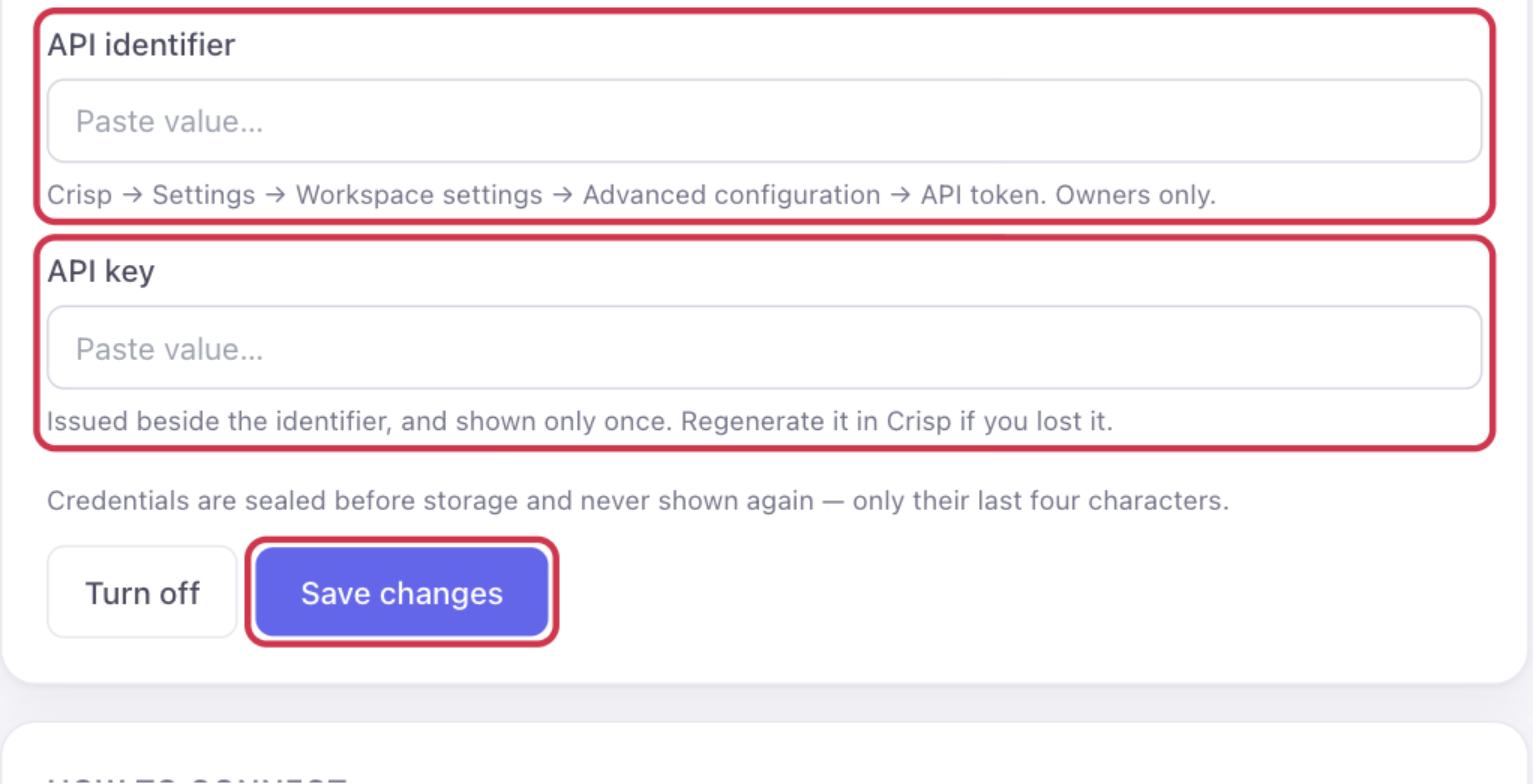
The status badge at the top of the panel flips from Not connected to Connected. Credentials are sealed before storage and never shown again — only their last four characters. On a channel that is already connected the fields show a masked tail and the button reads Save changes, as above: click Replace on a field to paste a new value, and leave the others alone to keep them.
Step 4 — Add the OneChat webhook URL in Crisp
Credentials let OneChat reply in Crisp. The webhook is what tells it a customer wrote in the first place, so this step is not optional.
In OneChat, on the same Crisp panel, click Copy next to Webhook URL. The URL is unique to this agent, so one copied from another agent will not work.
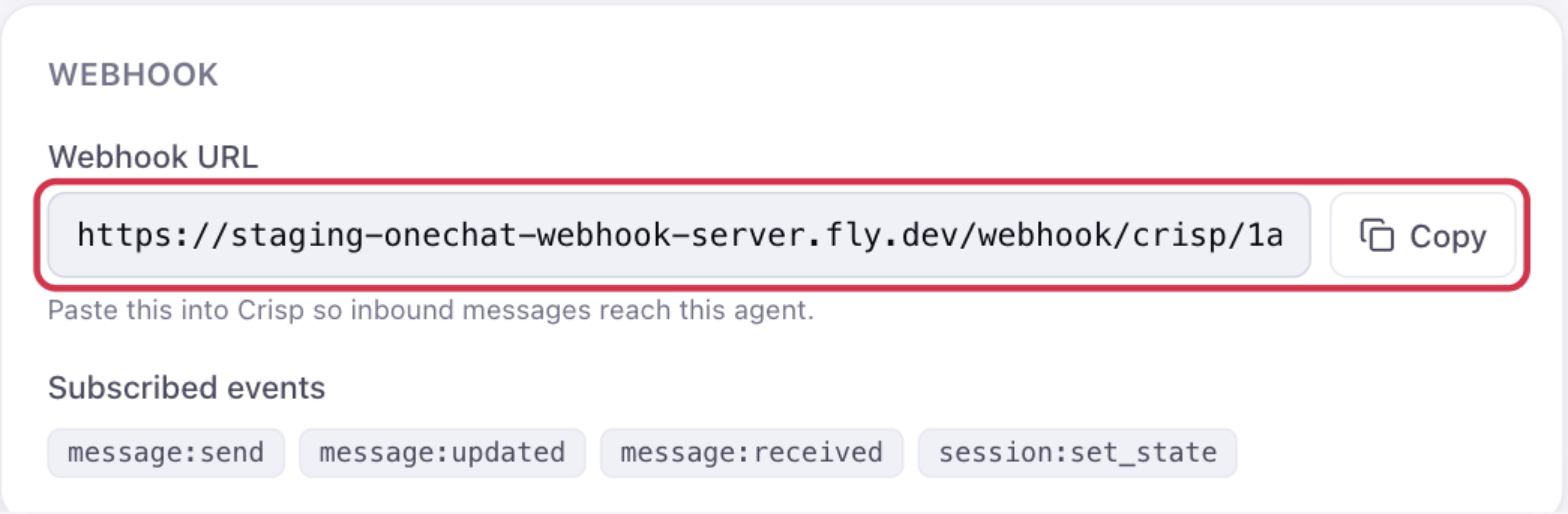
In Crisp, back on Advanced configuration, find the Web Hooks card and press Add a Web Hook.

Give the hook a name you will recognise later (for example OneChat integration), paste the OneChat webhook URL, and subscribe it to message:send — that is the event fired when a customer sends a message. Save it, and the hook appears in the list as Active.
Step 5 — Send a test message
Open your website's chat box and send a question as a visitor. The conversation appears in your Crisp inbox, the agent answers there, and the same conversation shows up in the OneChat dashboard.
If replies do not arrive
- Nothing reaches OneChat — the webhook is missing, inactive, or not subscribed to
message:send. Check the Web Hooks card in Crisp, and confirm the URL matches this agent. - OneChat sees the message but nothing is posted back in Crisp — the API identifier and key are wrong, or the token was recreated after you connected. Create a fresh pair and paste both in.
- The website ID is wrong — messages arrive but cannot be matched to your workspace. Copy it again from Setup & Integrations.
- Your team keeps answering first — that is by design, not a fault. OneChat steps back as soon as a human replies in Crisp.
Notes
- Your team can take over any conversation directly in Crisp at any time; OneChat steps back as soon as a human replies.
- The agent answers in the same Crisp thread the customer started, so the customer never sees a handoff.
- Prefer Slack? Escalations can also ping your team there — see Human handoff to Slack.
- Conversations handled in Crisp count toward your monthly conversations like any other channel. See Plans & billing.