Connect LINE
Connect your LINE Official Account so OneChat answers customer messages there automatically — including voice messages, which are especially popular on LINE.
The connection is a straight swap of three values between two consoles: you copy OneChat's Webhook URL into LINE, then copy LINE's Channel secret and Channel access token back into OneChat.
Prerequisites
- A LINE Official Account (create one free at the LINE Official Account Manager).
- Admin access to that account, and a Messaging API channel for it in the LINE Developers Console.
- An agent in OneChat. The webhook URL is issued per agent, so create the agent first.
Step 1 — Open the channel in OneChat
In the OneChat dashboard, open your agent and go to the Integrations tab, then pick LINE from the channel list.
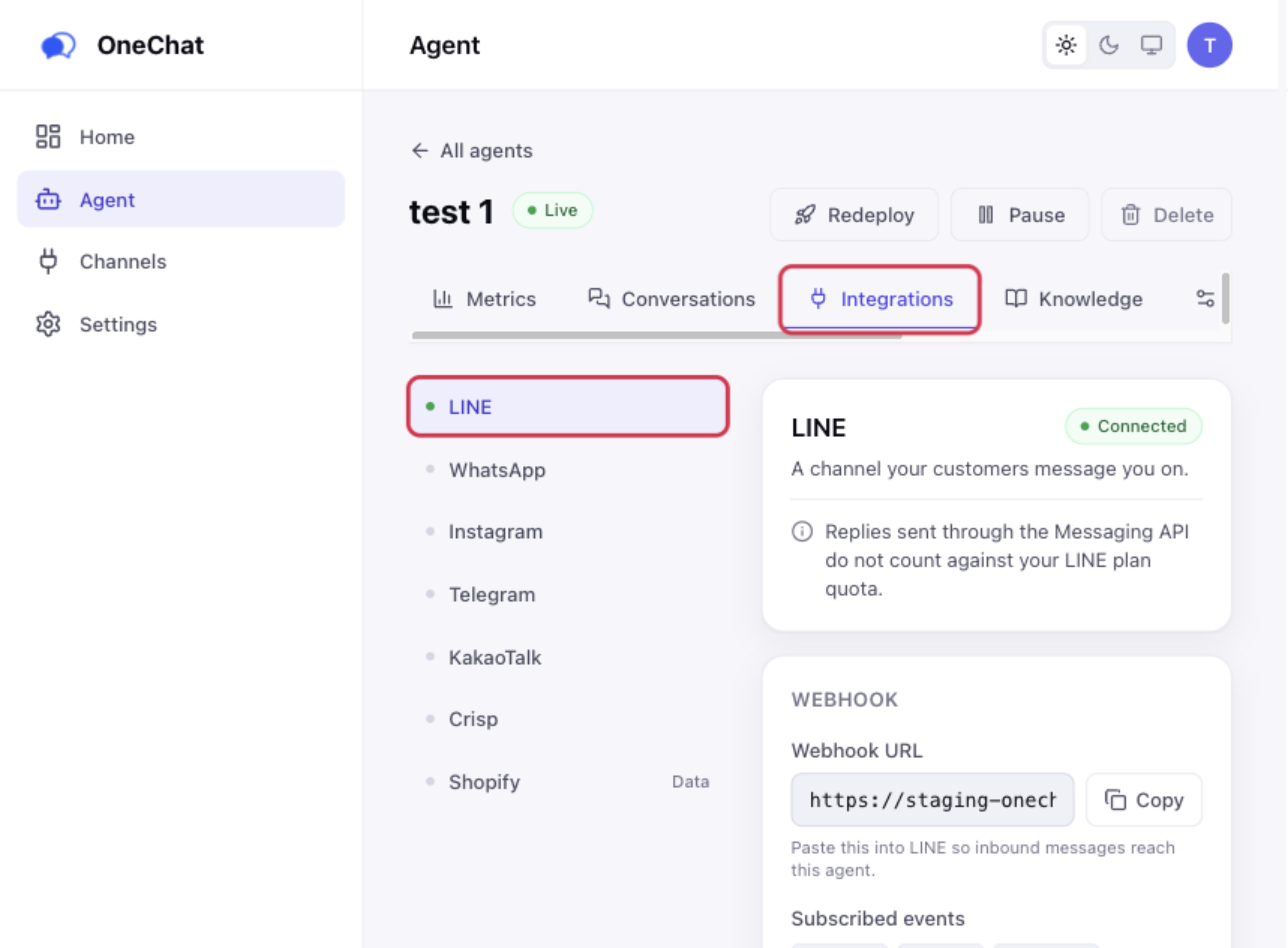
The panel has three sections: Webhook, Credentials and How to connect. Click Copy next to Webhook URL — you will paste it into LINE in the next step.
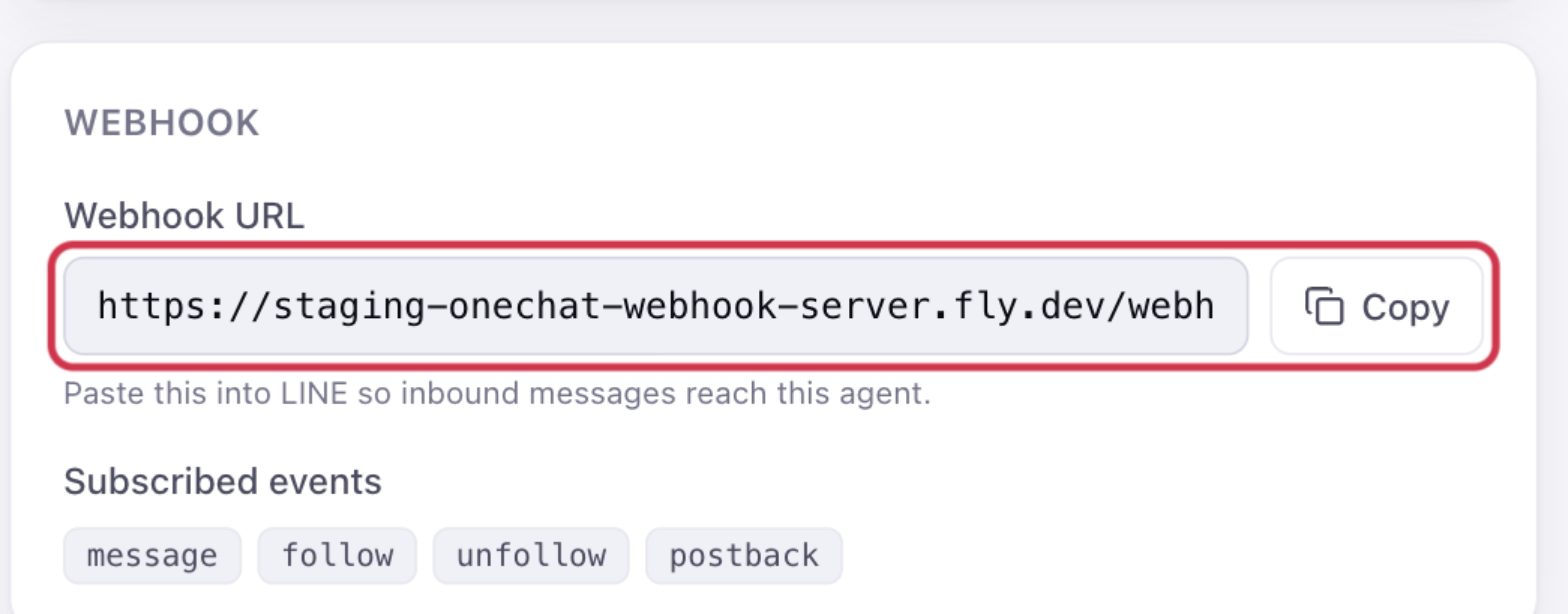
The URL is unique to this agent, so one copied from another agent will not work.
The webhook URL is minted by OneChat's servers, not guessed by the dashboard. If it says Loading this channel's webhook URL…, give the page a moment; if it never appears, the API server is unreachable.
Step 2 — Find your channel in the LINE Developers Console
Open the LINE Developers Console, pick your provider, and open your Messaging API channel. Everything below lives on this channel's Basic settings and Messaging API tabs.

Step 3 — Paste the OneChat webhook URL into LINE
This step moves one value from OneChat to LINE: the webhook URL you copied in Step 1.
In the LINE Developers Console, on the Messaging API tab, scroll to Webhook settings. Click Edit next to Webhook URL, paste the OneChat webhook URL, and save. Then turn Use webhook on.

Verify sends LINE's test request to the URL. A success there means LINE can reach OneChat; replies still need the two credentials in the next steps.
Step 4 — Copy the LINE channel secret to OneChat
This step and the next move values the other way, from LINE to OneChat.
In the LINE Developers Console, on the Basic settings tab, scroll to the bottom. Channel secret is the second-to-last row, above Assertion Signing Key. Click the copy icon next to it.

Back in OneChat, on the same LINE panel, paste it into Channel secret under Credentials. OneChat uses it to verify that incoming requests really came from LINE.
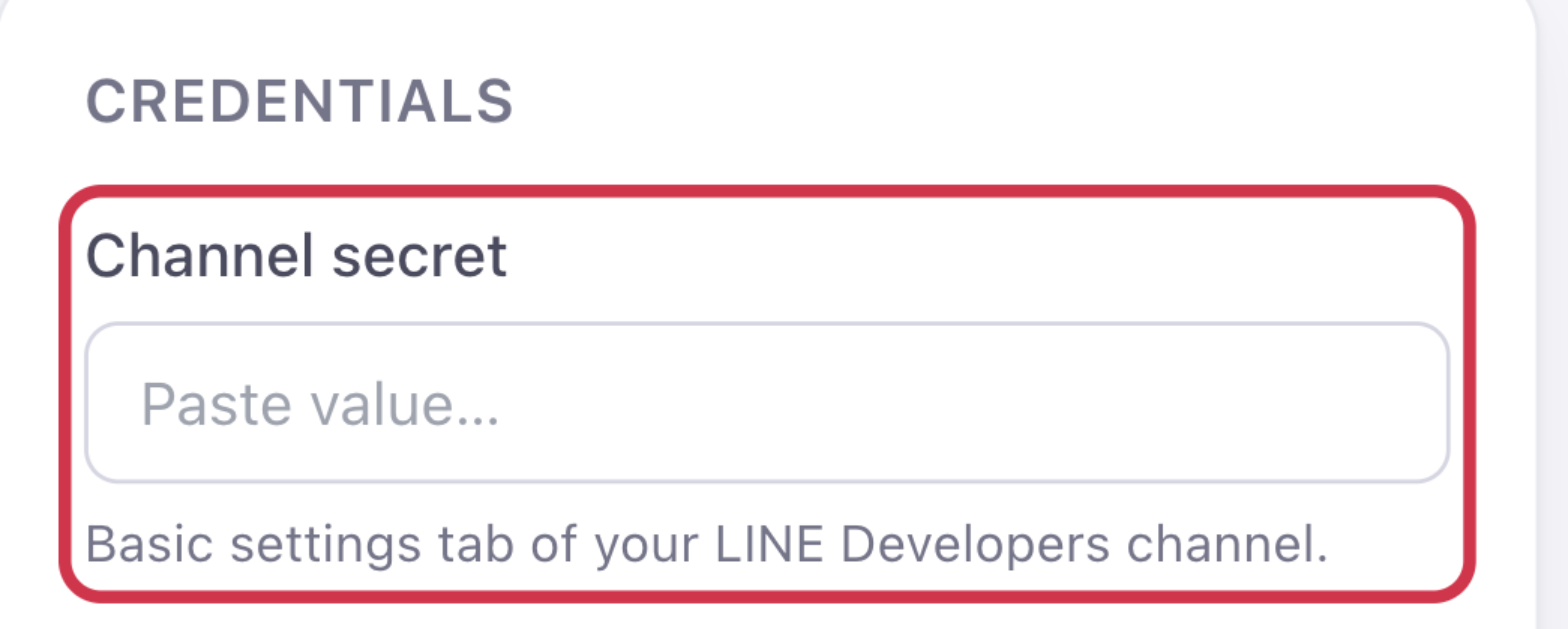
Issue next to the channel secret in LINE generates a new secret and invalidates the current one. Only use it if the secret has leaked — and paste the new value into OneChat straight away, or messages stop arriving.
Step 5 — Issue a channel access token on LINE and connect
In the LINE Developers Console, back on the Messaging API tab, scroll to the bottom section, Channel access token. Under Channel access token (long-lived), click Issue if no token exists yet, then click the copy icon.
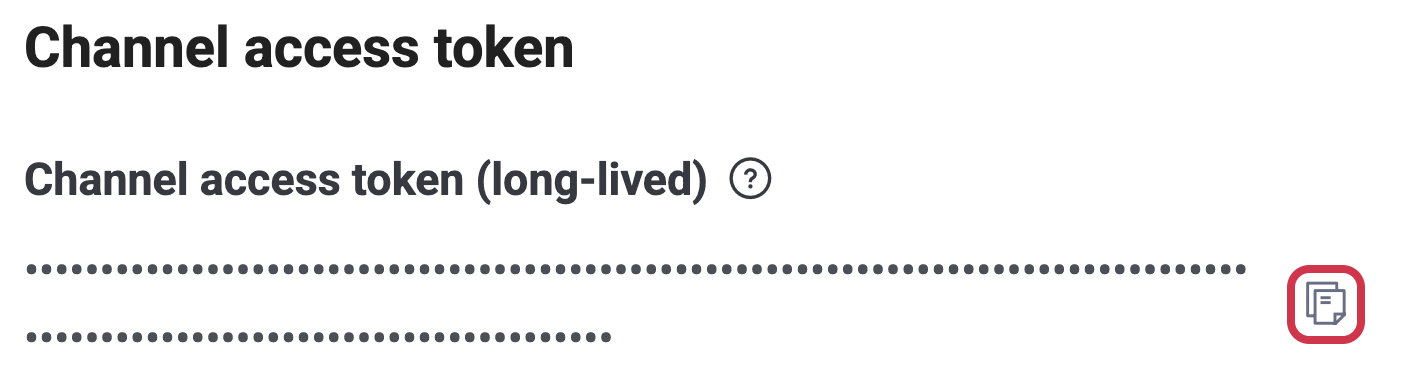
If a token is already there, do not press Reissue — that invalidates the token any other tool is using. Copy the existing one.
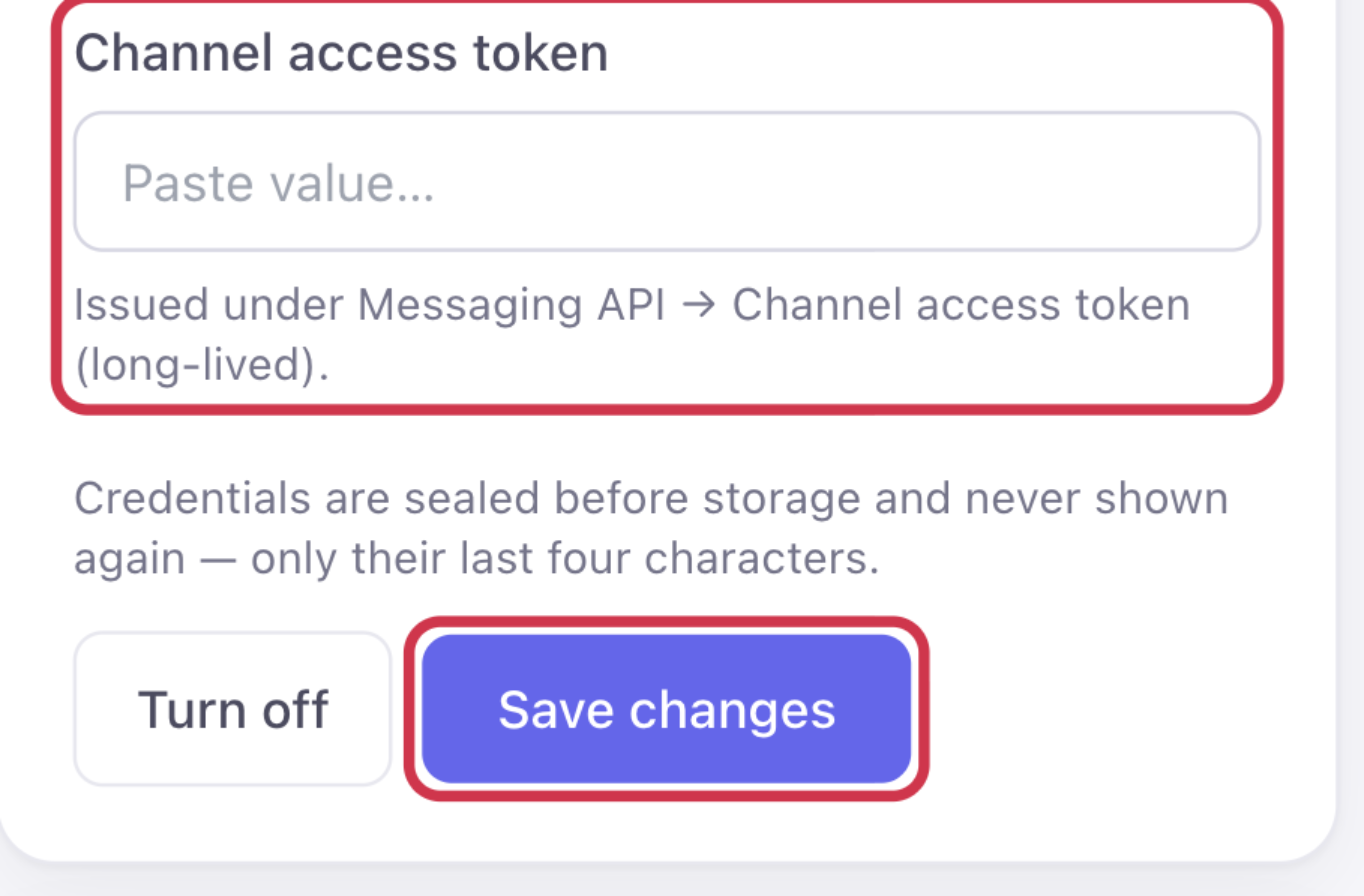
Back in OneChat, paste it into Channel access token, then click Connect. This token is what lets the agent send replies as your Official Account.
The status badge at the top of the panel flips from Not connected to Connected, and the Subscribed events list shows what LINE will send: message, follow, unfollow and postback.
Credentials are sealed before storage and never shown again — only their last four characters. On a channel that is already connected the fields show a masked tail and the button reads Save changes, as above: click Replace on a field to paste a new value, and leave the other one alone to keep it.
Step 6 — Stop LINE from answering first
LINE's own auto-reply will answer ahead of your agent if it is left on. On the Messaging API tab, the LINE Official Account features section shows the current state of Auto-reply messages and Greeting messages; the Edit links jump to the LINE Official Account Manager, where they are actually changed.

In the LINE Official Account Manager, go to Settings → Response settings.
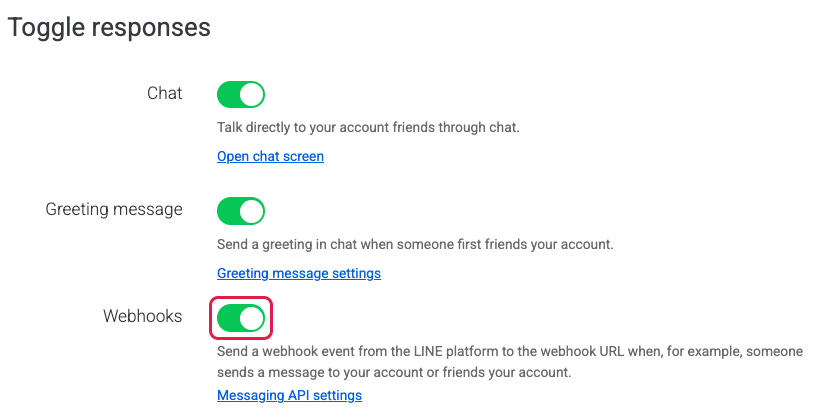
Under Toggle responses, make sure Webhooks is on — without it LINE never calls OneChat, no matter what the Developers Console says.
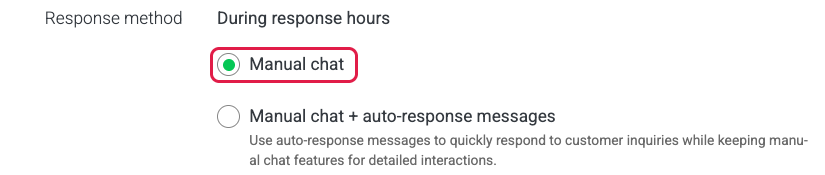
Under Chat response method, set Response method to Manual chat. "Manual chat + auto-response messages" lets LINE's canned replies fire alongside your agent, which is what produces double answers.
Step 7 — Send a test message
Add your Official Account as a friend — the QR code on the Messaging API tab is the quickest way — and send it a question from your personal LINE app. The conversation and the agent's reply appear in the OneChat dashboard within seconds.
If replies do not arrive
Start with Verify next to the webhook URL in the LINE Developers Console: it says whether LINE can reach OneChat at all.
- Verify fails — LINE cannot reach the URL. Check that it is pasted in full, that Use webhook is on in the Developers Console, and that Webhooks is on in the Official Account Manager.
- Verify succeeds but nothing reaches the dashboard — the webhook URL belongs to a different agent, or the channel secret does not match this channel. Copy both again from the console.
- Messages reach the dashboard but the customer sees no reply — the channel access token is wrong, or it was reissued after you connected. Issue a fresh one and paste it in.
- Two replies to every message — LINE's auto-reply is still on. See Step 6.
To watch failures over time, turn on Error statistics aggregation under Webhook settings in the Developers Console.
LINE delivers each message to only one webhook. If your account previously used another bot or auto-reply tool, that tool's webhook is replaced when you paste OneChat's URL; if replies stop later, check that nothing re-registered its own. See Troubleshooting.
Notes
- Replies are sent from your Official Account, so customers see your brand, not OneChat.
- Replies sent through the Messaging API do not count against your LINE plan quota.
- Language detection is automatic — a customer writing in Japanese gets a Japanese reply. See Languages.
- When the agent escalates, the full LINE conversation history is attached to the Slack handoff.
- Group chats are off by default (Allow bot to join group chats), and OneChat is built around one-to-one support conversations.