Connect Telegram
Connect a Telegram bot so OneChat answers customers who message your business on Telegram.
Telegram is the shortest of the channel setups: one value moves, the bot token, and OneChat registers the webhook with Telegram for you.
Prerequisites
- A Telegram account.
- A bot for your business, created with @BotFather — it takes about a minute.
- An agent in OneChat. The webhook URL is issued per agent, so create the agent first.
Step 1 — Create the bot and copy its token
In Telegram, open a chat with @BotFather and send /newbot. It asks for two things:
- A display name — what customers see at the top of the chat, e.g.
Acme Support. - A username — must be unique and end in
bot, e.g.acme_support_bot.
BotFather replies with a congratulations message containing the bot token, a long string shaped like 123456789:AAH.... Copy it.
The token is the bot. Anyone who has it can read and send messages as your bot, so treat it like a password: do not paste it into a ticket, a chat, or a screenshot. If it leaks, send /revoke to BotFather and paste the new token into OneChat.
Step 2 — Open the channel in OneChat
In the OneChat dashboard, open your agent, go to the Integrations tab, and pick Telegram from the channel list.
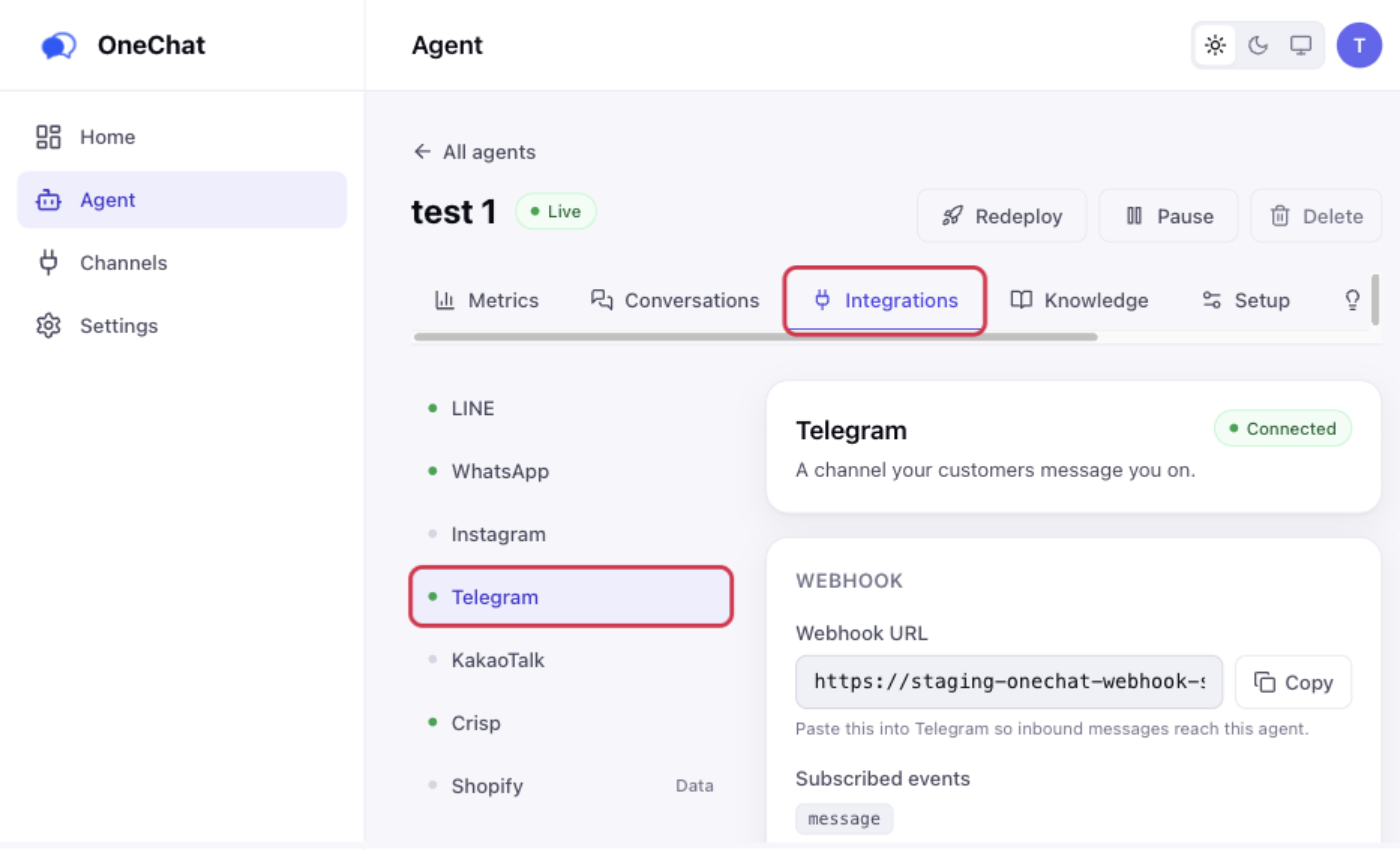
Step 3 — Paste the bot token and connect
Under Credentials, paste the token into Bot token and press Connect.
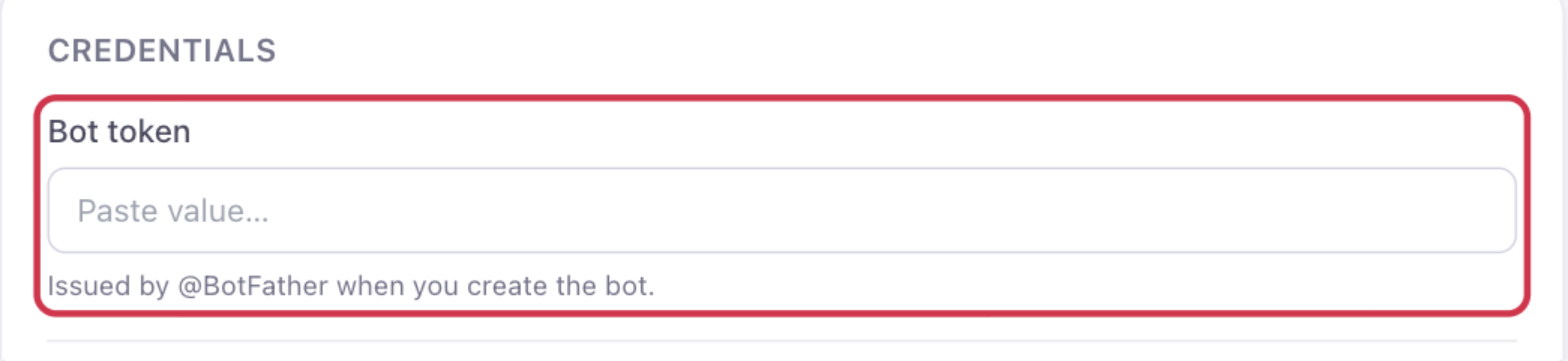
The status badge at the top of the panel flips from Not connected to Connected. The token is sealed before storage and never shown again — only its last four characters.
Step 4 — Register the webhook with Telegram
Unlike LINE or Crisp, there is nothing to paste on the Telegram side: Telegram accepts a webhook over its own API, so OneChat hands over the URL for you. Press Register with Telegram.
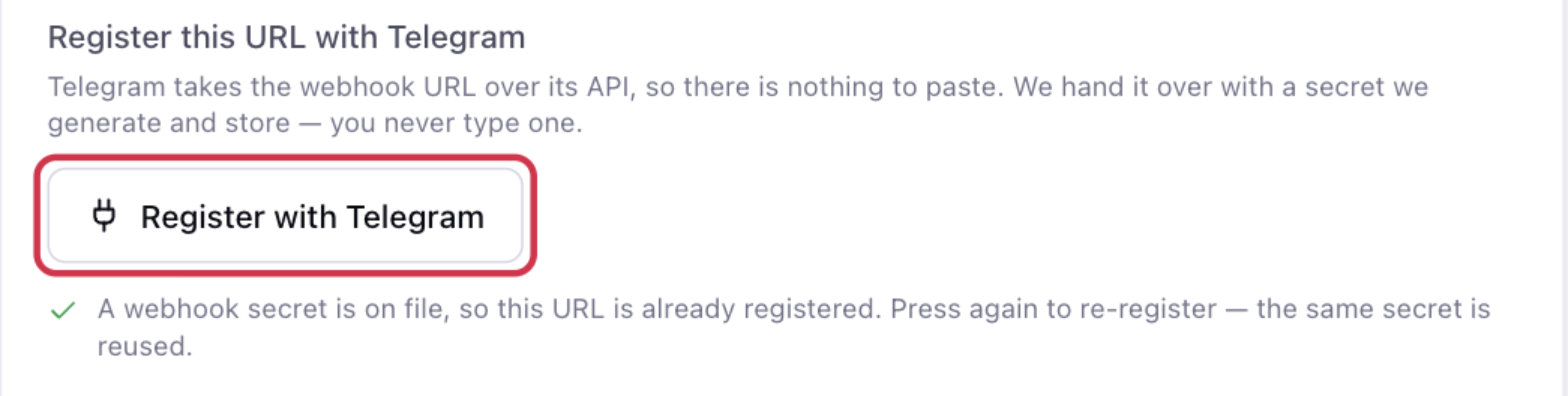
OneChat sends Telegram the agent's webhook URL together with a secret it generates and stores — you never type or copy one. Once the call succeeds, the panel confirms that a secret is on file and the URL is registered.
Pressing the button again is safe: it re-registers the same URL and reuses the same secret.
Step 5 — Send a test message
Open your bot in Telegram — the t.me/<your_bot_username> link from BotFather — press Start, and send a question. The conversation and the agent's reply appear in the OneChat dashboard within seconds.
If replies do not arrive
- The bot never answers — the webhook is not registered. Press Register with Telegram again and watch for the confirmation line.
- It worked, then stopped — something else registered a webhook on the same bot. Telegram allows only one webhook per bot, and the newest registration wins, so re-register from OneChat.
- You changed the bot token — press Register with Telegram again. The old registration belongs to the old token.
- The bot answers in a group but not in DMs, or vice versa — BotFather's privacy setting controls what a bot can see in groups. OneChat is built around direct messages to the bot.
Notes
- Share your bot's
t.me/...link on your website or social profiles so customers can find it. - Group chats are not a support channel — OneChat answers direct messages to the bot.
- Voice messages are transcribed and answered like text. See Voice notes.
- Press Register with Telegram again after changing the bot token, or any time deliveries stop: it is safe to repeat and re-points the bot at this agent.
- Language detection is automatic. See Languages.