Connect WhatsApp
Connect a WhatsApp Business number so OneChat answers your customers there — text and voice notes alike.
WhatsApp is the longest of the channel setups, because Meta splits the pieces across three places: the number lives in your WhatsApp Business Account, the app secret belongs to your Meta app, and the access token comes from a system user in your business portfolio. Four values move from Meta to OneChat; two then move back — the webhook URL and a verify token OneChat generates for you.
Prerequisites
- A WhatsApp Business phone number, registered on the WhatsApp Business Platform (Cloud API). This can be a new number or one migrated from the WhatsApp Business app.
- A Meta app with the WhatsApp product added, and admin rights on the business portfolio that owns it.
- An agent in OneChat. The webhook URL is issued per agent, so create the agent first.
A phone number can be active on only one WhatsApp Business Platform integration at a time. If the number is currently used in the WhatsApp Business app or another tool, Meta walks you through migrating it.
Step 1 — Open the channel in OneChat
In the OneChat dashboard, open your agent, go to the Integrations tab, and pick WhatsApp from the channel list.
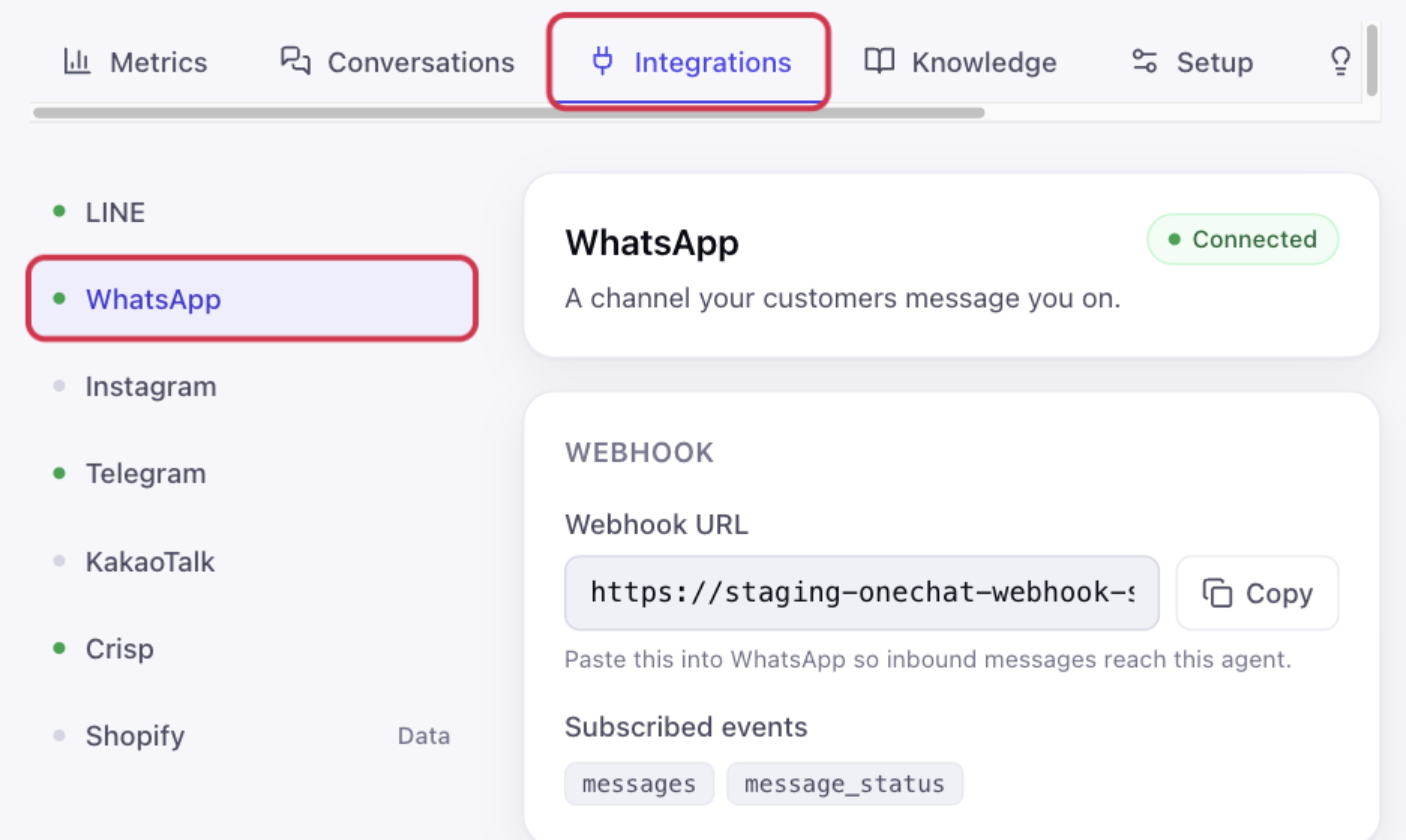
Leave the panel open. The next three steps fill in Credentials from Meta; Step 6 comes back here for the two values Meta needs.
Step 2 — Copy the two IDs from Meta
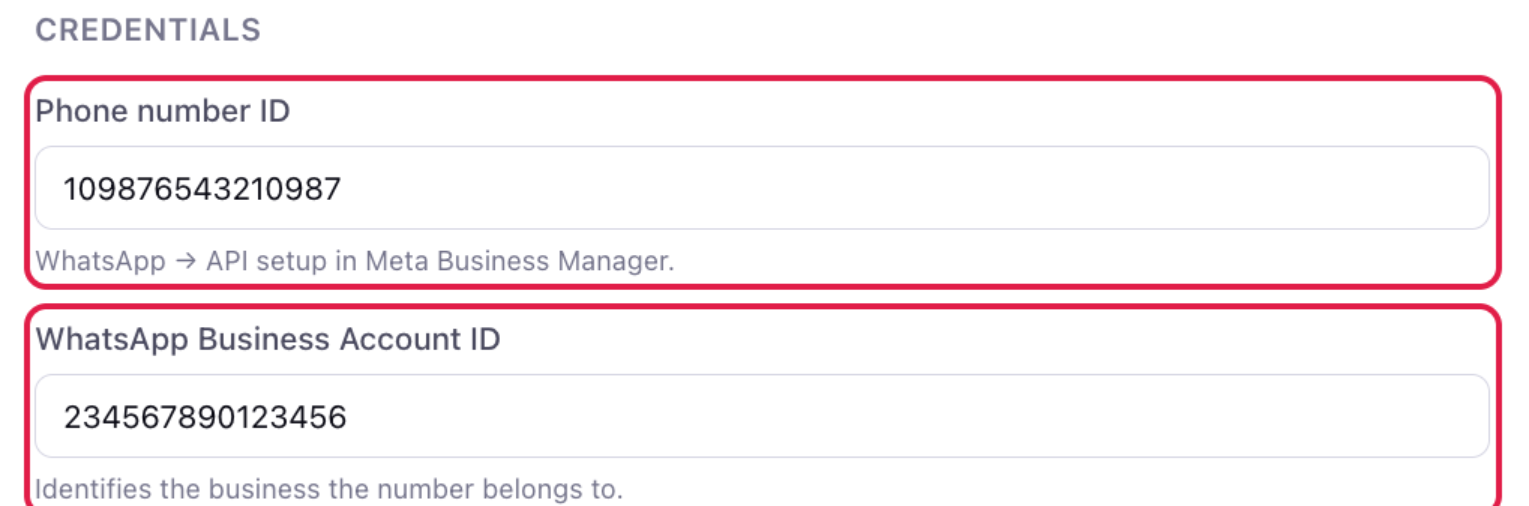
In the Meta app dashboard, open your app and go to WhatsApp → API setup. The page lists both IDs against the number you are connecting:
- Phone number ID — the number itself, as the API addresses it. Not the phone number in digits.
- WhatsApp Business Account ID — the WABA the number belongs to.
Paste each into the matching field under Credentials in OneChat.
Step 3 — Create a permanent access token
The token on the API setup page expires after 24 hours. For a connection that keeps working, create a system user token instead:
- Open Business settings for the portfolio that owns the app (business.facebook.com).
- Go to Users → System users and add one (or pick an existing one) with the Admin role.
- Press Generate new token, choose your app, and set the expiry to Never.
- Grant it
whatsapp_business_messagingandwhatsapp_business_management. - Copy the token — Meta shows it only once.
Paste it into System user access token in OneChat.
Step 4 — Copy the app secret
Still in the Meta app dashboard, go to App settings → Basic, press Show next to App secret, and copy the value. It belongs to the app, not to the number, and OneChat uses it to check the X-Hub-Signature-256 header Meta signs every delivery with.
Paste it into App secret in OneChat.
Step 5 — Connect
That is everything Meta asks you for. With the phone number ID, WABA ID, access token and app secret in the form, press Connect.
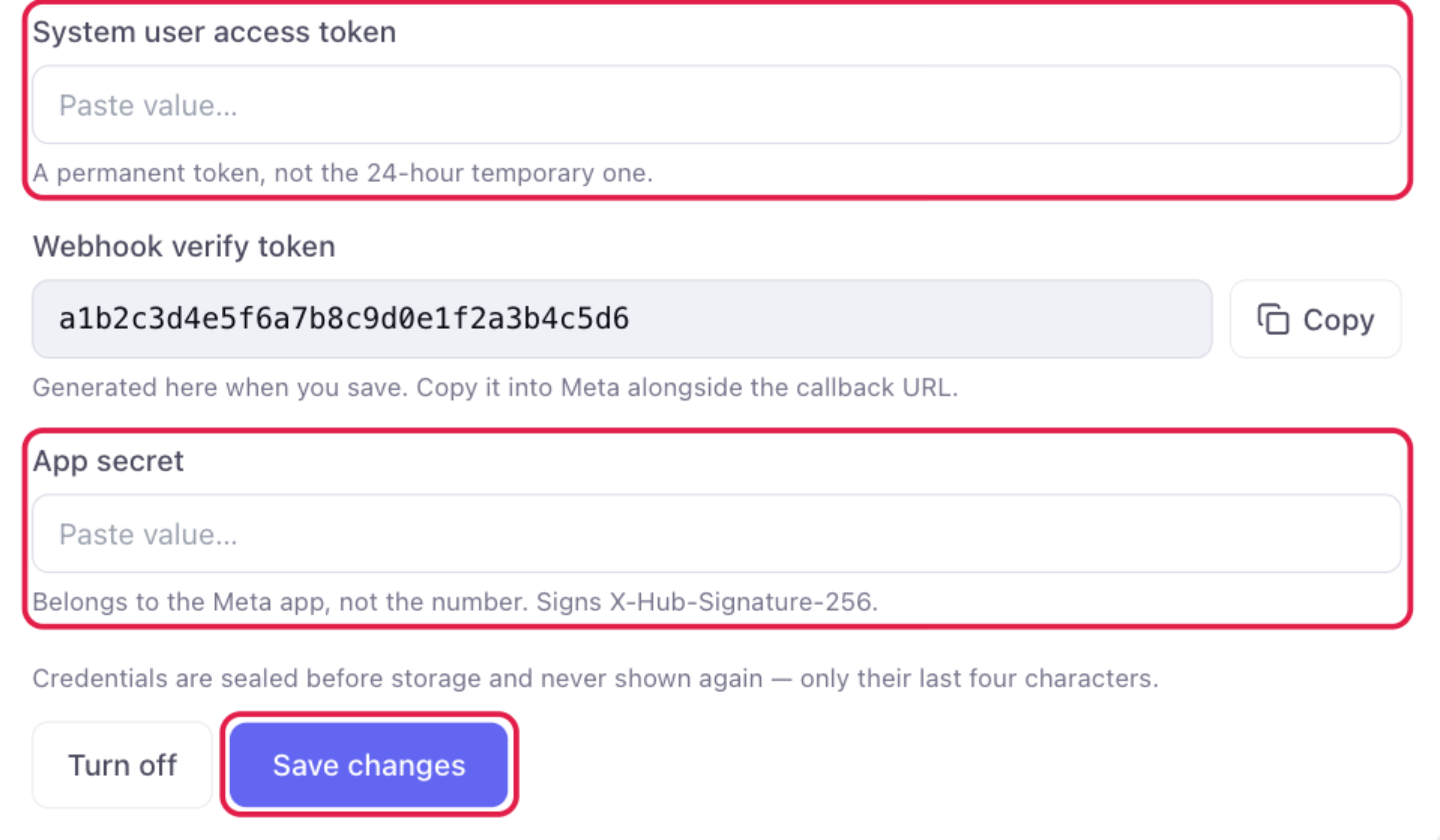
The status badge at the top of the panel flips from Not connected to Connected. Credentials are sealed before storage and never shown again — only their last four characters. On a channel that is already connected the fields show a masked tail and the button reads Save changes: click Replace on a field to paste a new value, and leave the others alone to keep them.
Step 6 — Point Meta at the OneChat webhook
Saving mints the last value: Webhook verify token. You do not choose it — Meta echoes it back once, when it first calls your callback URL, to prove the URL really belongs to you, and OneChat generates and stores it so there is nothing to invent and nothing to keep in step by hand. Before the first save the field reads Generated when you save this channel; afterwards it shows the token with a Copy button.
Copy both values from the panel:
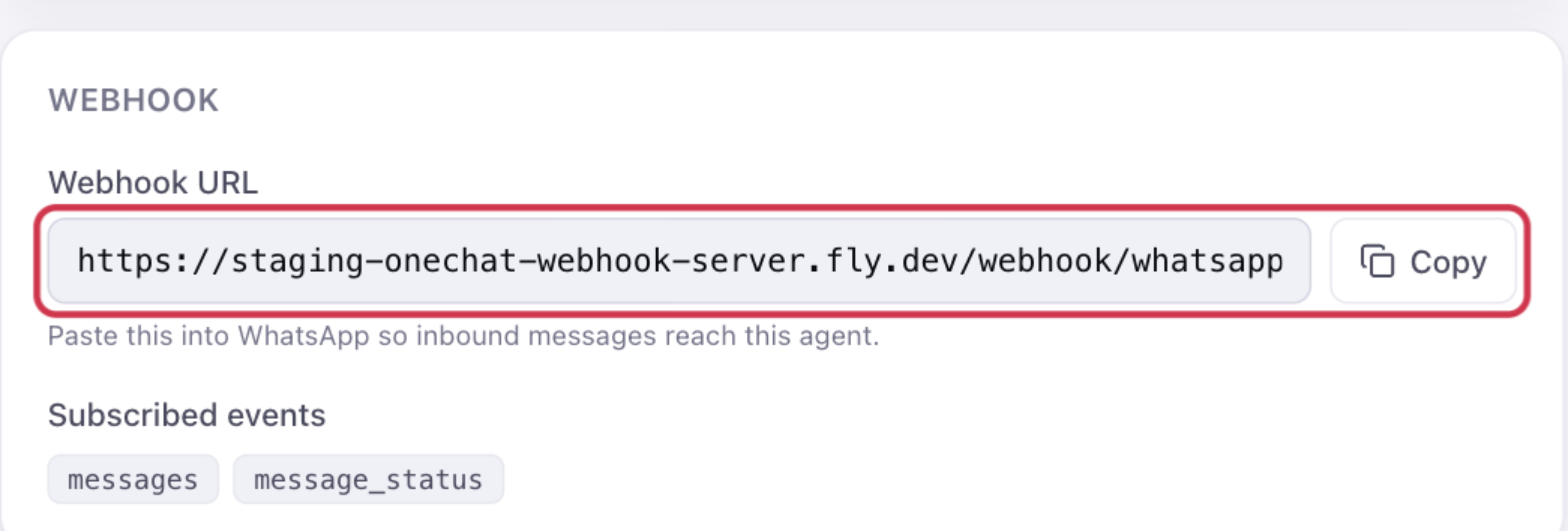

The webhook URL is unique to this agent, so one copied from another agent will not work.
Then, in the Meta app dashboard, go to WhatsApp → Configuration and press Edit beside Webhook:
- Callback URL — the OneChat Webhook URL.
- Verify token — the generated Webhook verify token, pasted exactly.
- Press Verify and save. Meta calls the URL immediately; if the token matches, the dialog closes without an error.
Then press Manage next to Webhook fields and subscribe to messages. That is the field that carries inbound customer messages — without it Meta verifies the URL and then delivers nothing.
Step 7 — Send a test message
Message your business number from a personal WhatsApp account. The conversation and the agent's reply appear in the OneChat dashboard within seconds.
If replies do not arrive
- "The callback URL or verify token couldn't be validated" — the two sides do not match. Copy the Webhook URL and Webhook verify token from the OneChat panel again and paste both without editing them; the verify token exists only after the channel is saved.
- The webhook verifies but nothing arrives — the
messagesfield is not subscribed. Check Webhook fields under WhatsApp → Configuration. - Messages arrive but the customer sees no reply — the access token is temporary, expired, or missing a permission. Create a system user token with Never expiry and both
whatsapp_business_*permissions. - Deliveries are rejected as unsigned — the app secret belongs to a different Meta app than the one the webhook is configured on. Copy it again from App settings → Basic.
Notes
- WhatsApp requires businesses to respond within its 24-hour customer service window; because OneChat replies instantly, this is rarely a concern.
- Voice notes are transcribed and answered like text — no "sorry, I can only read text."
- Language detection is automatic. See Languages.
- When the agent escalates, the full conversation is attached to the Slack handoff.